Showing posts with label Configuration. Show all posts

Tuesday, 28 May 2013

OBIEE 11.1.6..Environment incompatible with IE 10 version.


There are OBIEE 11g incompatibility issues with IE10 and we had already raised SR with Oracle for the same.

As per updates from Oracle , IE10 is not certified with 11.1.1.6.x or 11.1.1.7.0. The supported browser versions with respect to 11.1.1.6.+ are as follows:
"Chrome 12+
Internet Explorer 9.x
Firefox 6+"

That is the reason there are issues with the IE10 in your environment. For IE users, it is recommended to use the IE9 browser to use OBIEE, or use the supported browser as mentioned above.

Workaround 1
1. In IE browser window :    Go to Tools -> F12 Developer Tools. This opens a window  in the  lower half of the browser.
2. Make the Browser Mode as IE 10 and Select Document Mode as IE 9 Standards.
 Whenever a new tab is opened in IE10 , we need to do steps 1 and 2. The document mode settings cannot be set to 'IE9 Standards' globally.

Workaround 2

These steps would help to roll back to your original IE version before it got upgraded to IE10 -
Ø  Go to Windows Control Panel > select Programs and Features (note if you have windows XP then it would be ‘Add/Remove Icon’) > select ‘Turn Windows features on or off’ > You should now see a popup called   "Windows Features".
Ø  Un check Internet Explorer 10 > you get a popup message warning; just click ‘Yes’ > click ‘OK’ button.
Ø  Now back to the program and feature screen click "View installed updates"  > scroll down until you see Internet Explorer > right click > uninstall and click ‘OK’ all the way out.
Ø  Reboot your computer and let Windows go through its update. When it's done you should have your old Internet Explorer browser back.

Thursday, 17 January 2013

Remember Username and Password in Obiee11g

Go to your BIPS config path, for example like below,
D:\Oracle\instances\instance1\config\OracleBIPresentationServicesComponent\coreapplication_obips1 and the search Security tab in your instanceconfig file and add <AllowRememberPassword>true</AllowRememberPassword>
Then save it and restart bips servervices.
Include the elements and their ancestor elements as appropriate, as shown in the following example:
<Security>
<!--This Configuration setting is managed by Oracle Enterprise Manager Fusion Middleware Control-->
<ClientSessionExpireMinutes>210</ClientSessionExpireMinutes>
<AllowRememberPassword>true</AllowRememberPassword>
<CookieDomain>value</CookieDomain>
<CookiePath>/analytics</CookiePath>
<InIFrameRenderingMode>prohibit</InIFrameRenderingMode>
</Security>
Save your changes and close the file.
Restart Oracle Business Intelligence Presentation Services via OPMN
Then Test it,
Just click on yes and then it will load in BI Home page ..then next logout and login OBIEE page it will remember your Username and Password then load in BI home page.
For More please refer,

Sunday, 18 November 2012

Edit Analysis and navigate to Criteria Tab-11g

Always when you edit the analysis, you would be navigated to the 'Results' tab by default and then again you need to click on the 'Criteria' tab, to edit.
There is an option to go to criteria tab when clicked on edit analysis.
This feature is available now in 11.1.1.6 in 'My Account' section.

People might have noticed this, but might not have tested the change.

 
Next time when you click on edit analysis, the system will take you to criteria tab.


Thursday, 8 November 2012

11g Removing the Gray Header from Reports


In 11g, the user can right click on the pivot table report and do sorting excluding the column etc.. also a little grey header on the column heading appears.
This feature is good to some extend and worse in most of the cases. Supposing the user wants to disbale all this, then there should be a way out :)

To remove the gray color tab appearing above the column headings in the pivot table.

Just Edit your analysis and then click on "Analysis Properties dialog" then select Interactions tab here you uncheck all the Interactions link then save it and test it.
 
 If you want to disable enitre report just add below content in your instanceconfig.xml file then restart bi presentation services then test it out.

Include the elements and their ancestor elements as appropriate, as shown in the following example:
<ServerInstance>
<Analysis>
<InteractionProperties>
<InteractionPropertyAddRemoveValues>false</InteractionPropertyAddRemoveValues>
<InteractionPropertyCalcItemOperations>false</InteractionPropertyCalcItemOperations>
<InteractionPropertyDrill>false</InteractionPropertyDrill>
<InteractionPropertyGroupOperations>false</InteractionPropertyGroupOperations>
<InteractionPropertyInclExclColumns>false</InteractionPropertyInclExclColumns>
<InteractionPropertyMoveColumns>false</InteractionPropertyMoveColumns>
<InteractionPropertyRunningSum>false</InteractionPropertyRunningSum>
<InteractionPropertyShowHideSubTotal>false</InteractionPropertyShowHideSubTotal>
<InteractionPropertySortColumns>false</InteractionPropertySortColumns>
</InteractionProperties>
</Analysis>
</ServerInstance>

For More Refer Oracle Note:
http://docs.oracle.com/cd/E23943_01/bi.1111/e10541/answersconfigset.htm#BIESG3772
18.3.4 Manually Configuring for Interactions in Views

 Result-


Or to individual pivot table report,  add this code in the static view and append it to pivot table view


<script type="text/javascript">
var tds = document.getElementsByTagName('td');
var lCSS = new Array();
for(var td=0;td<tds.length;td++){
if( tds[td].className != 'PTCC' ){
if( tds[td].className != 'PTCHC0 PT_CPLCHLD PTLC' ){
continue;
}
}
tds[td].style.backgroundColor="#FFFFFF";tds[td].style.display='none';
lCSS.push(tds[td].innerHTML);
}
for(var len =0; len < lCSS.length; len++){
}
</script>

Comments are always welcome...

Tuesday, 24 July 2012

Vertical Alignment of Text

When there is a requirement to show the values into horizontal or vertical alignment, then this post can do the miracle to the requirement.
All we need to do is we need to put the below piece of code in the Column Properties-->Use Custom CSS Style(checked)

Writing-mode: tb-rl; filter: flipv fliph;


I have also put the below code by removing the flipv and fliph keywords in the above code
Writing-mode: tb-rl; filter: flipv;
Writing-mode: tb-rl; filter: fliph;


.


Comments are always welcome...

Sunday, 15 July 2012

Starting OBIEE in Linux and Unix

Startup the BI services

Set the BI_HOME to the Oracle BI Home path e.g. /opt/oracle/product/OracleBI

$export BI_HOME=/opt/oracle/product/OracleBI
#Start the BI sever
$$BI_HOME/setup/run-sa.sh start
#Start the presentation service
$$BI_HOME/setup/run-saw.sh-start
#Start the scheduler
$$BI_HOME/setup/run-sch.sh start
#Start the cluster controller – only required when BI servers clustered
$$BI_HOME/setup/run-ccs.sh start

Shutdown the BI services

$export BI_HOME=/opt/oracle/product/OracleBI
#Stop the cluster controller – only required when BI servers clustered
$$BI_HOME/setup/run-ccs.sh stop
#Stop the BI sever
$$BI_HOME/setup/run-sa.sh stop
#Stop the presentation service
$$BI_HOME/setup/run-saw.sh stop
#Stop the scheduler
$$BI_HOME/setup/run-sch.sh stop

Tuesday, 3 July 2012

Log Configuration - 11g

Configure the Business Intelligence log files by choosing what level of message gets logged and when a log file expires. Changes apply to all Business Intelligence log files.

Also refer below for the path of the Log files-


Friday, 29 June 2012

Data Level Security


I know I am re-inventing the wheel for Data level security. But I want to show the obiee beginners a simple guide to implement the same. Hope people out there struggling to implement Data level security will get a hint to build it.

Data Level security is implemented in the case when the user logging in views the data which he/ she has the access to. This includes to include a system session variable 'USER'to capture the user's logging credentials and apply it to the reports query.

I am having three tables for serving their purpose.
1. Dimension Table - DIM2
2. Fact Table  - FACT1
3. Security Table -SECURITY_1

Data present in the above tables is shown below-


Next we need to import the three tables in the RPD and do the below joins-


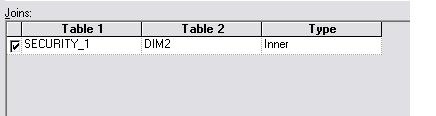
Joins with Dimension and Security table in physical Layer

"DIM2"."COUNTRYID" = "SECURITY_1"."COUNTRYID"

Joins with Fact and Security table in physical Layer

"FACT1"."EMPID" = "SECURITY_1"."EMPID"

Joins with Fact and Security table in physical Layer

"DIM2"."COUNTRYID" ="FACT1"."COUNTRY_ID"


In the BMM layer for the dimension table we need to make the below changes. This change is used to apply when the user selects only the dimension column. So that the values which he/ she has the access will be shown after making the joins with the security table. For example- On clicking of the Prompt values.


And the below change in the Content Tab -where clause


In the BMM layer for the fact table we need to make the below changes. Data will be restricted after making joins with the security table and joins with the dimension  table. You can try removing the joins with the dimension and security tables which is not mandatory, since we are joining with the fact and security tables.


And the below change in the Content Tab -where clause


Now its time to view our reports in answers. When the user logs in with 100 as empid then the user is allowed to view only his/ her data.


With the Fact column-


When the user with 200 empid logs in-


Prompt value shown for the user with empid 200

Below are the queries generated-

For Dimension Security

WITH SAWITH0 AS
  (SELECT DISTINCT T222731.COUNTRY_NAME AS c1
  FROM OBIEE_DBA.SECURITY_1 T222728,
    OBIEE_DBA.DIM2 T222731
  WHERE ( T222728.EMPID = '100'
  AND T222728.COUNTRYID = T222731.COUNTRYID )
  )
SELECT DISTINCT 0 AS c1, D1.c1 AS c2 FROM SAWITH0 D1 ORDER BY c2

With Fact Dimension columns with Security tables joins. With user with login id as 100

WITH SAWITH0 AS
  (SELECT DISTINCT T222731.COUNTRY_NAME AS c1,
    T222734.SALARY                      AS c2
  FROM OBIEE_DBA.SECURITY_1 T222728,
    OBIEE_DBA.DIM2 T222731,
    OBIEE_DBA.FACT1 T222734
  WHERE ( T222728.EMPID = T222734.EMPID
  AND T222728.EMPID     = '100'
  AND T222728.COUNTRYID = T222731.COUNTRYID
  AND T222731.COUNTRYID = T222734.COUNTRY_ID )
  )
SELECT DISTINCT 0 AS c1,
  D1.c1           AS c2,
  D1.c2           AS c3
FROM SAWITH0 D1
ORDER BY c2,
  c3

With user with login id as 200

WITH SAWITH0 AS
  (SELECT DISTINCT T222731.COUNTRY_NAME AS c1,
    T222734.SALARY                      AS c2
  FROM OBIEE_DBA.SECURITY_1 T222728,
    OBIEE_DBA.DIM2 T222731,
    OBIEE_DBA.FACT1 T222734
  WHERE ( T222728.EMPID = T222734.EMPID
  AND T222728.EMPID     = '200'
  AND T222728.COUNTRYID = T222731.COUNTRYID
  AND T222731.COUNTRYID = T222734.COUNTRY_ID )
  )
SELECT DISTINCT 0 AS c1,
  D1.c1           AS c2,
  D1.c2           AS c3
FROM SAWITH0 D1
ORDER BY c2,
  c3


Comments are always welcome...

Tuesday, 26 June 2012

Time to move to OBIEE 11g

Time to move to OBIEE 11g... Yes, browsing through found a link guiding me through the support extended by Oracle Team to its products.
Oracle has established itself strongly on many products and continuing to do so. The support extended to its products is mentioned in the pdf doc mentioned below-
http://www.oracle.com/us/support/library/lifetime-support-middleware-069163.pdf
OBIEE related support is provided in the 14th page and is useful to all the teams running their application on the respective versions. So after checking the Premier support period for OBIEE 10g, we need to be cautious and start with the plans to upgrade the existing OBIEE 10g versions to OBIEE 11g version.

Providing a screenshot of the 14th page for your information-


People move on....

Monday, 25 June 2012

Flat Files Import


Gone through blogs to view if we can connect to the notepad data from OBIEE. And of course, many blogs threw light on the procedure. I would like to elaborate more on the concept here in this blog. Data loading from notepad is very rare but good to know the process of importing the data and its configuration settings.
I am having the below shown data in the notepad. And rememeber it is tab indented. So you need to be careful while entering your data.


As you all know, we need to have a DSN connection configured to have the notepad data imported to RPD. Creating a System DSN with Microsoft Text Driver.


Select Directory and save the path from where you need to import the data from the notepad.
You need to click on the 'Define Format'.


Click on the 'Guess'button. The setting will try to find the appropriate setting of the data which is retrieved from the notepad data.


You can click on the values and modify or remove the columns according to your requirements.
Once all the above steps are complete then click on OK and close the connection settings.

In the RPD import the notepad file by selecting the appropriate DSN entry made earlier. And also give the name of DSN entry as the username.


And view the data. And data pops up with beauty


Thursday, 23 February 2012

Customized Message for No result On all Reports

The default messages displayed when a report returns no data are in:
BI_HOME\web\msgdb\<language>\messages\viewme ssages.xml

You can override these messages in by creating a custommessages.xml file in BI_HOME\web\mesdb\customMessages

For example, the following changes the default 'No Results' message:

<?xml version="1.0" encoding="utf-8"?>
<WebMessageTables>
<WebMessageTable system="Custom Messages">
<!-- Change No Results message -->
<WebMessage name="kmsgEVCNoRowsTitle"><HTML> ;No Data Found!</HTML></WebMessage>
</WebMessageTable>
</WebMessageTables>

Refer below for more information-
http://docs.oracle.com/cd/E14571_01/bi.1111/e10541/webuicustom.htm

 
logoncontrolmessages.xml Logon Page
dashboardtemplates.xml Dashboard page


Comments are always welcome...

Sunday, 29 January 2012

Log Files in OBIEE 11g


Login to the URL http://server.domain:7001/em and navigate to:
Farm_bifoundation_domain-> Business Intelligence-> coreapplications-> Dagnostics-> Log Messages
Also refer below for the Log File configuration-
http://obiee10grevisited.blogspot.in/2012/07/log-configuration-11g.html
You will find the available files:
  • Presentation Services Log
  • Server Log
  • Scheduler Log
  • JavaHost Log
  • Cluster Controller Log
  • Action Services Log
  • Security Services Log
  • Administrator Services Log
However, you can also review them directly on the hard disk. 
The log files for OBIEE components are under <OBIEE_HOME>/instances/instance1/diagnostics/logs.  Specific log files and their location is defined in the following table:

Installation log

<OBIEE_HOME>/logs

nqquery log

<OBIEE_HOME>/instances/instance1/diagnostics/logs/OracleBIServerComponent/coreapplication_obis1

nqserver log 

<OBIEE_HOME>/instances/instance1/diagnostics/logs/OracleBIServerComponent/coreapplication_obis1

servername_NQSAdminTool log 

<OBIEE_HOME>/instances/instance1/diagnostics/logs/OracleBIServerComponent/coreapplication_obis1

servername_NQSUDMLExec log

<OBIEE_HOME>/instances/instance1/diagnostics/logs/OracleBIServerComponent/coreapplication_obis1

servername_obieerpdmigrateutil log (Migration log)

<OBIEE_HOME>/instances/instance1/diagnostics/logs/OracleBIServerComponent/coreapplication_obis1

sawlog0 log (presentation)

<OBIEE_HOME>/instances/instance1/diagnostics/logs/OracleBIPresentationServicesComponent/coreapplication_obips1

jh log (Java Host)

<OBIEE_HOME>/instances/instance1/diagnostics/logs/OracleBIJavaHostComponent\coreapplication_obijh

webcatupgrade log (Web Catalog Upgrade)

<OBIEE_HOME>/instances/instance1/diagnostics/logs/OracleBIPresentationServicesComponent/coreapplication_obips1

nqscheduler log (Agents)

<OBIEE_HOME>/instances/instance1/diagnostics/logsOracleBISchedulerComponent/coreapplication_obisch1

nqcluster log

<OBIEE_HOME>/instances/instance1/diagnostics/logs/OracleBIClusterControllerComponent\coreapplication_obiccs1

ODBC log

<OBIEE_HOME>/instances/instance1/diagnostics/logs/OracleBIODBCComponent/coreapplication_obips1

opmn log

<OBIEE_HOME>/instances/instance1/diagnostics/logs/OPMN/opmn

debug log

<OBIEE_HOME>/instances/instance1/diagnostics/logs/OPMN/opmn

logquery log

<OBIEE_HOME>/instances/instance1/diagnostics/logs/OPMN/opmn

service log

<OBIEE_HOME>/instances/instance1/diagnostics/logs/OPMN/opmn

opmn out

<OBIEE_HOME>/instances/instance1/diagnostics/logs/OPMN/opmn

Upgrade Assistant log
 <OBIEE_HOME>Oracle_BI1/upgrade/logs